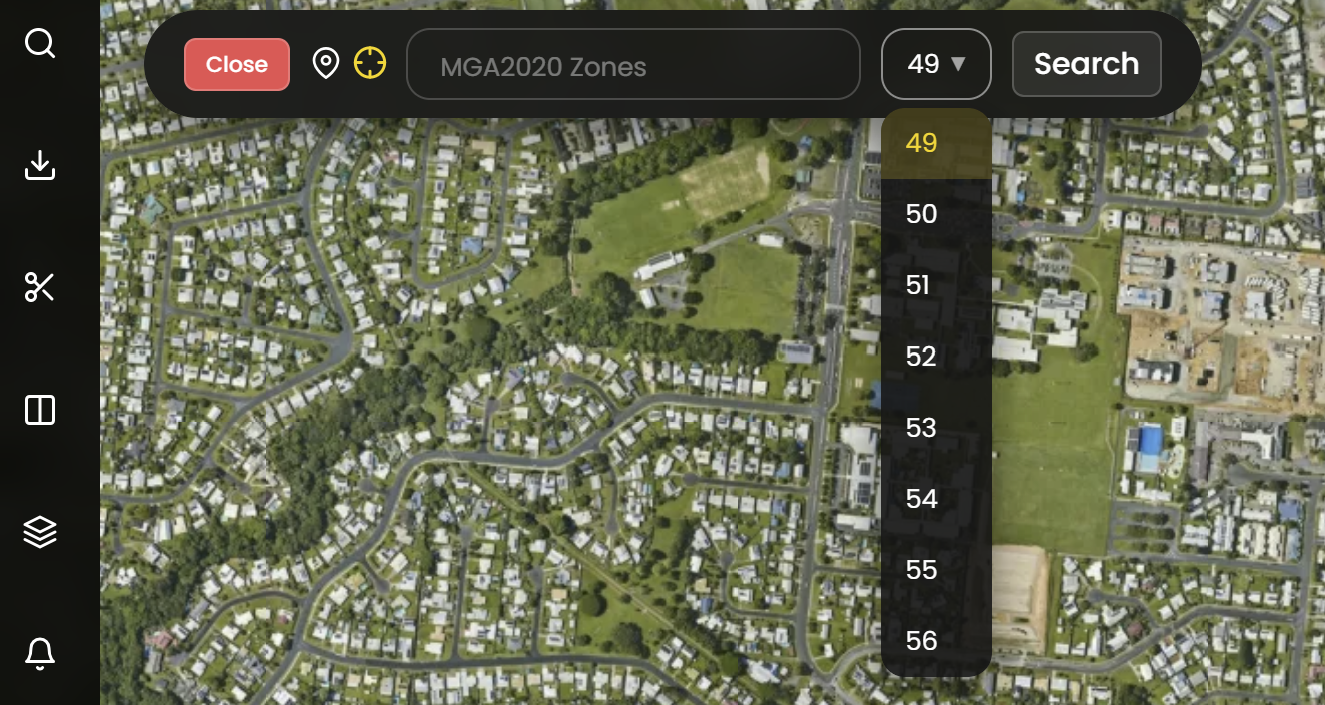
Our search tool is powered by Google. To find a specific location and get to that part of the map quickly, click the Search button, then type your search query into the search bar in the upper left part of the MapViewer. You can search for Australian locations only.
Search for Location by Street Address
Like with other online maps, simply type in the street number, street name, suburb/city or postcode, state and the MapViewer search will return more accurate results. Once a result is selected, the MapViewer zooms to the specified address and places a red Location pin on the map.
.png)
Search for Places of Interest
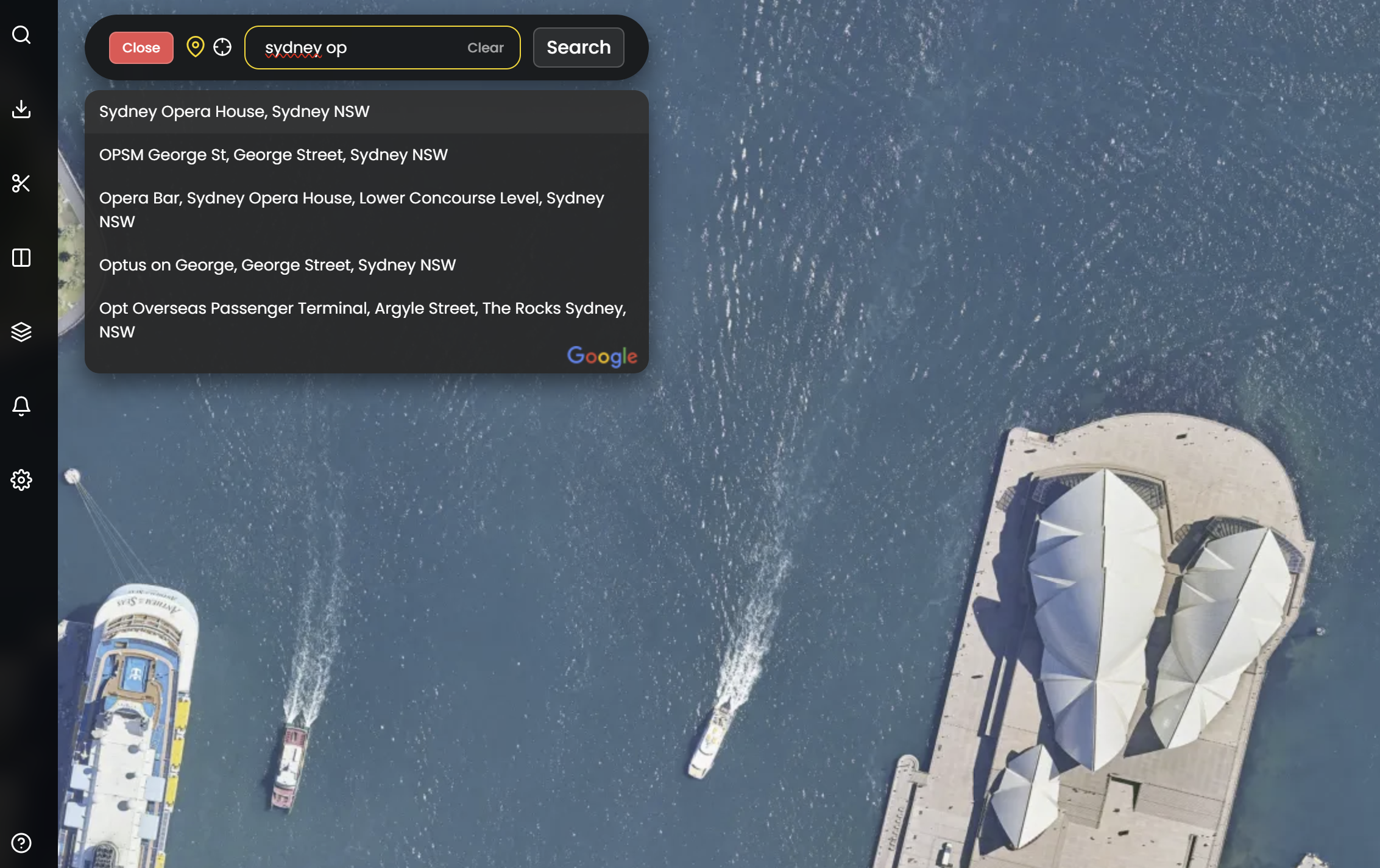
Places of interest can also be searched for, making the search for tourist attractions, zoos, stadiums, universities, places of worship much easier and more intuitive. Using the Search bar, you can type in the name of a landmark like “Sydney Opera House” or “Sydney Harbour Bridge" and MetroMap will take you there.
Search for Suburb
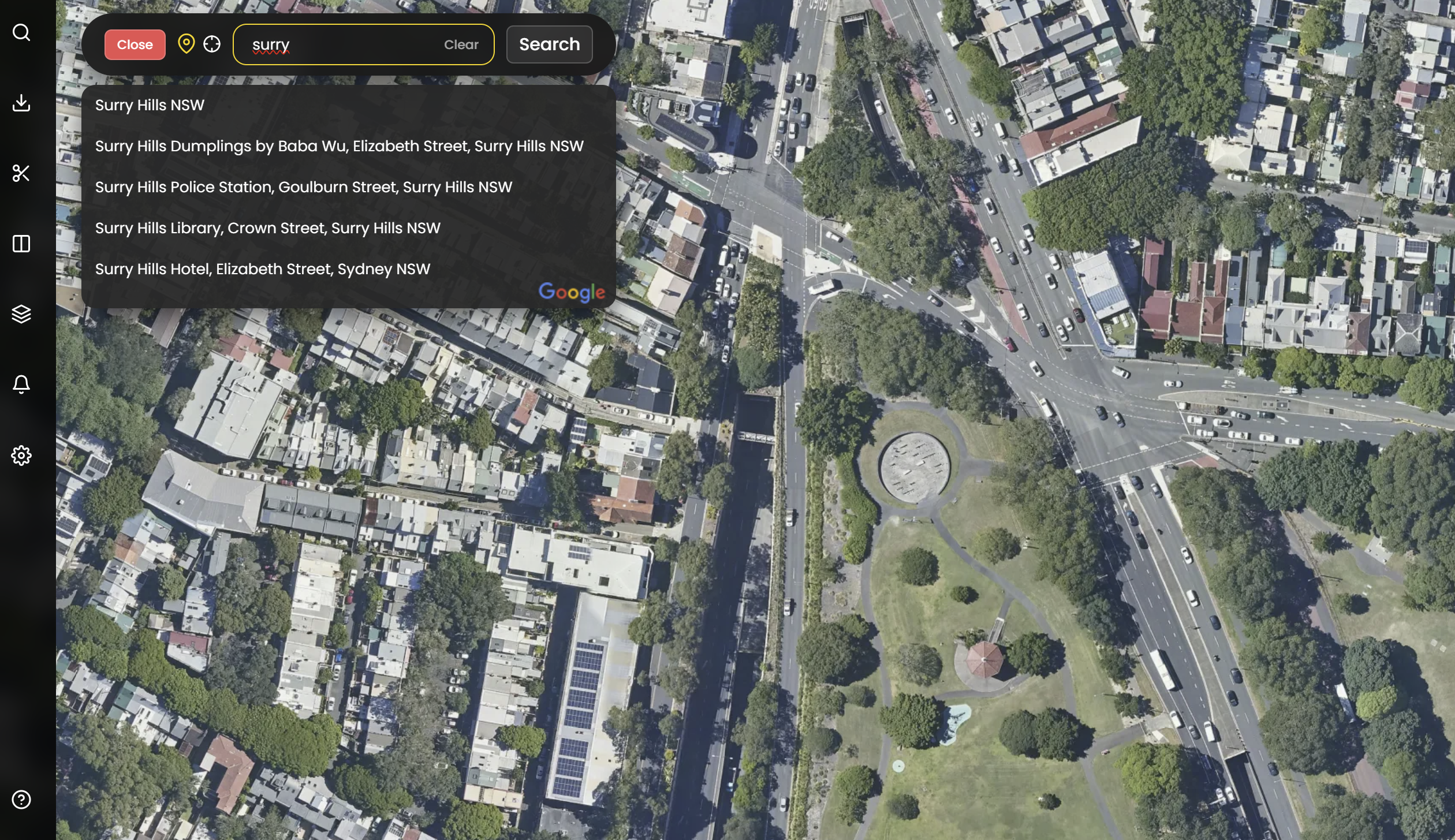
If you would like to explore a suburb, type in the name of the suburb in the search bar and you will then be presented with a MetroMap image layer centered on this suburb. If this suburb name exists in different states, the search results will provide you with options to choose from, and you can select which one to view.
Search History
For address searches, the five most recent searches will be available in the Search tool's history:

Search for Coordinate
To search for a coordinate, change the red drop down on the Search Bar to the Point Icon. The coordinate search function uses the same projection as the whole MapViewer. To change the projection, go to Map Preferences and change projection. The default supports Decimal Degrees coordinate searches:

When searching in a projected coordinate system such as GDA94 or GDA2020 MGA Zones, a drop down box will appear at the end of the coordinates search box, its default is to automatically select the correct MGA Zone at that location. The default for this projection supports meters, or eastings and northings coordinates.