Web Feature Service (WFS)
The Web Feature Service (WFS) is a MetroMap API service that can be used to find specific imagery layers when searching through the MetroMap imagery collection.
WFS vs STAC
While both services can be queried to find specific, appropriate data layers in the service's catalog, WFS is currently better supported by and thus more accessible in third-party applications (e.g. Esri). This makes the WFS a good alternative where the MetroMap STAC cannot be utilised.
https://api.metromap.com.au/wfs/YOUR_API_KEY/
WFS Metadata
| Attribute | Description | Example |
|---|---|---|
| ID | ID code number for the imagery layer. A sequentially ordered numbering system. | 2835 |
| Capture Date | Date of the imagery/survey's capture. | 2022-04-28 |
| Layer Name | Unique name for the layer based on given location, year of capture, and upload instance. | Adelaide_CBD_2022_2_GM |
| Layer Title | Name for the layer based on State, given location, and capture date. Not always unique. | SA Adelaide_CBD 2022-04-28 |
| Australia_Latest | Whether the layer is included in the Australia Latest mosaic. | Use this field to filter all the latest layers available in a single mosaic. |
| Australia_Capital_Cities | Whether the layer is included in the Australia Capital Cities mosaic. | Use this field to filter all the latest layers available in capital cities as a single mosaic. |
| State | The state or territory that the capture area is located in. | SA |
| Updated | The date the layer extent was added. | 13/05/2022 03:42:50 (Cen. Australia Standard Time) |
Using WFS
Using WFS in ArcGIS Pro
- Create a new project with a Map.
- From the ribbon, navigate to Insert → Connections → Server → New WFS Server to create a new WFS server connection.
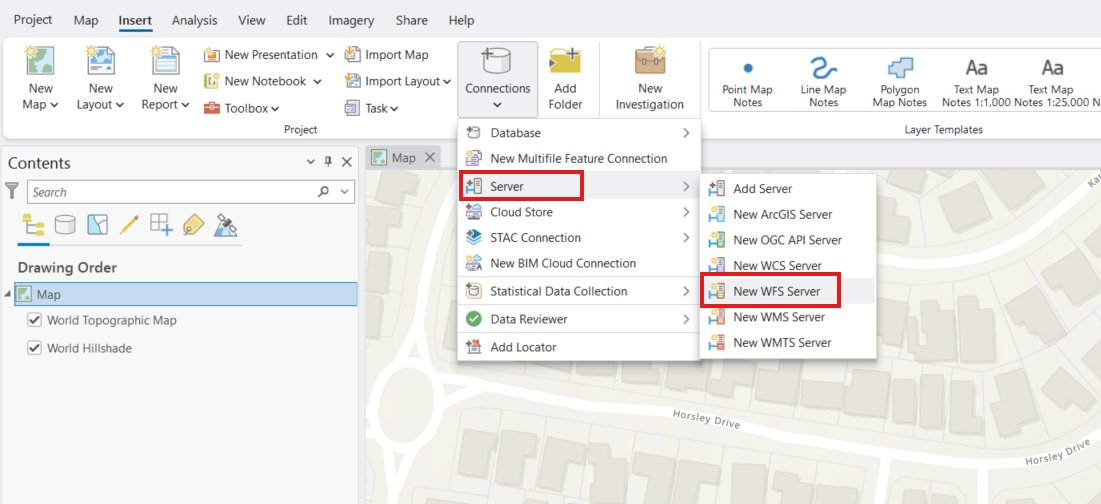
- Enter the following URL:.
https://api.metromap.com.au/wfs/YOUR_API_KEY/
- Replace YOUR_API_KEY with your MetroMap API key.
- Click OK to create the connection.
- In the Catalog pane, go to servers and drop down to see metromap_metadata option
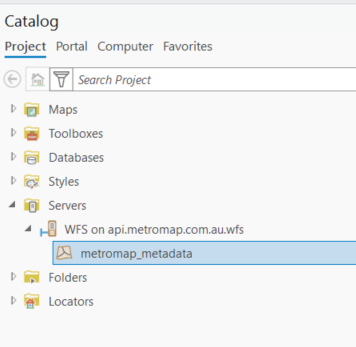
- Add the ‘metromap_metadata’ layer to your map.
- A pop-up dialog will appear allowing you to set the maximum number of features returned. By default, this value is 3000. Increase this value if you need to display all available features.
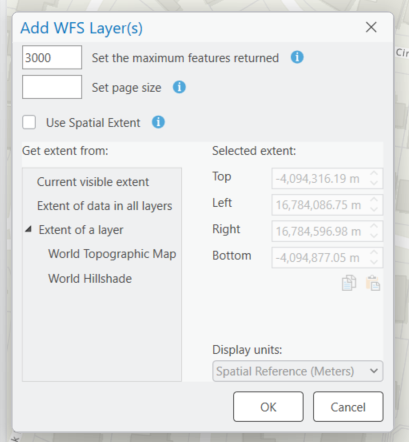
- Once you hit OK, the features should appear in the map.
Using WFS in QGIS (3.36.x or newer)
- Open QGIS.
- Navigate to Layer → Add Layer → Add WFS / OGC API - Features Layer.
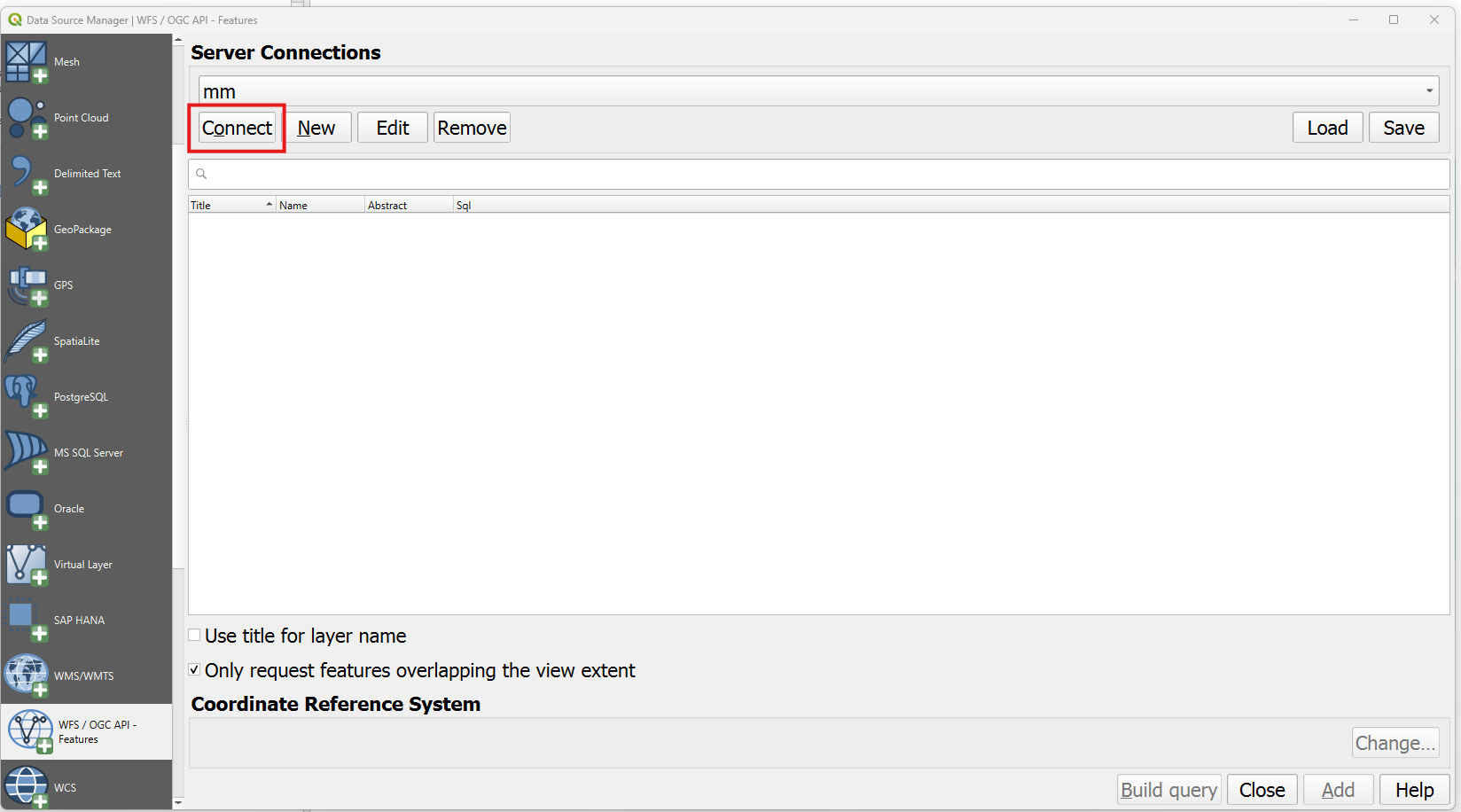
- Click New to create a new connection.
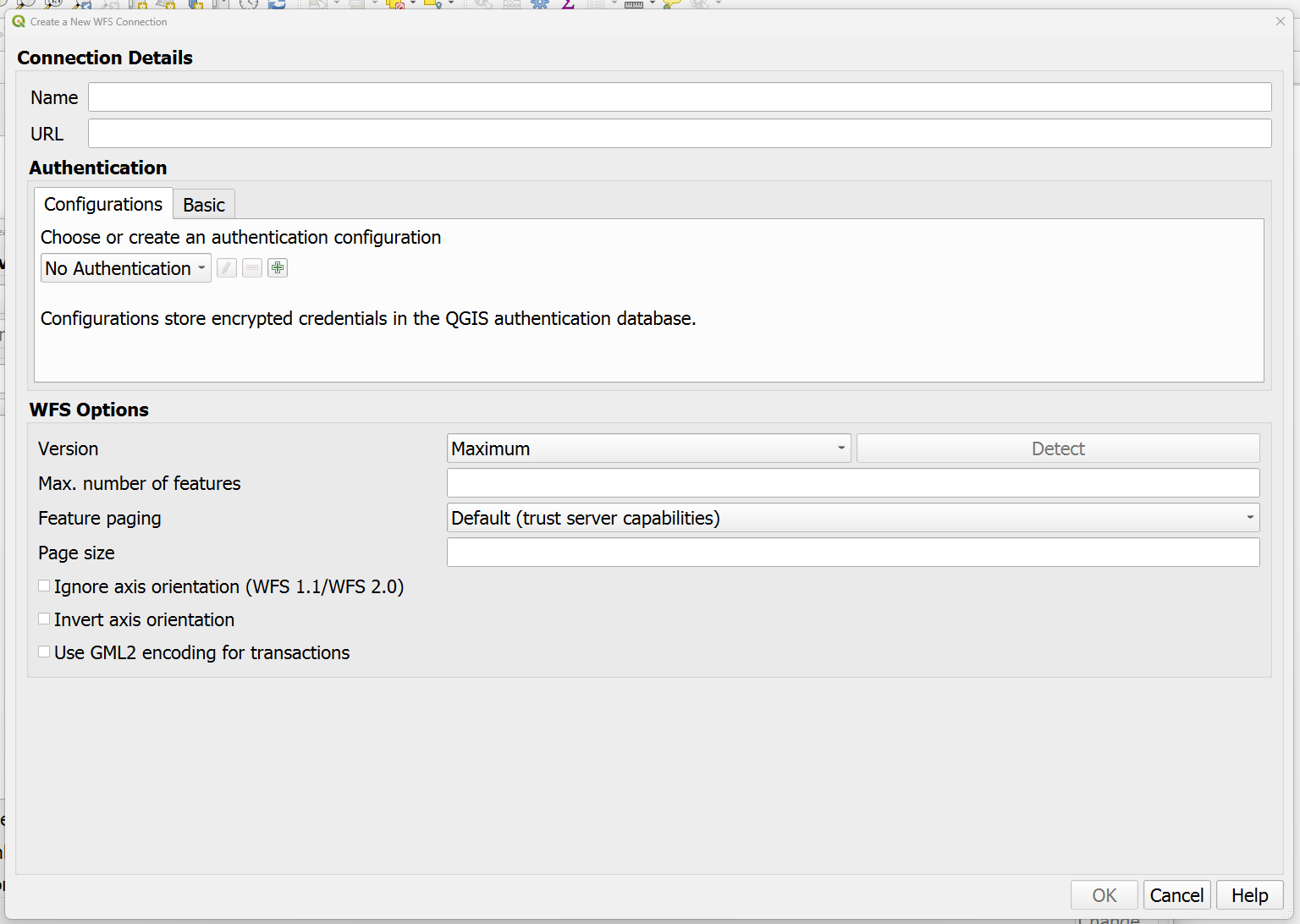
- Enter a name for the connection (e.g. MetroMap WFS).
- In the URL field, enter:
https://api.metromap.com.au/wfs/YOUR_API_KEY/
- Replace YOUR_API_KEY with your MetroMap API key then click OK.
- Click Connect to retrieve the available layers.